 PrimetimeGeek independent technology journalism · relaunched 2026
How Much RAM Do You Really Need for a New Laptop?
16GB is a sensible starting point for most buyers, but workload and upgradeability matter more than a bigger number. A practical US guide to 8GB, 16GB, 24GB, 32GB and beyond.
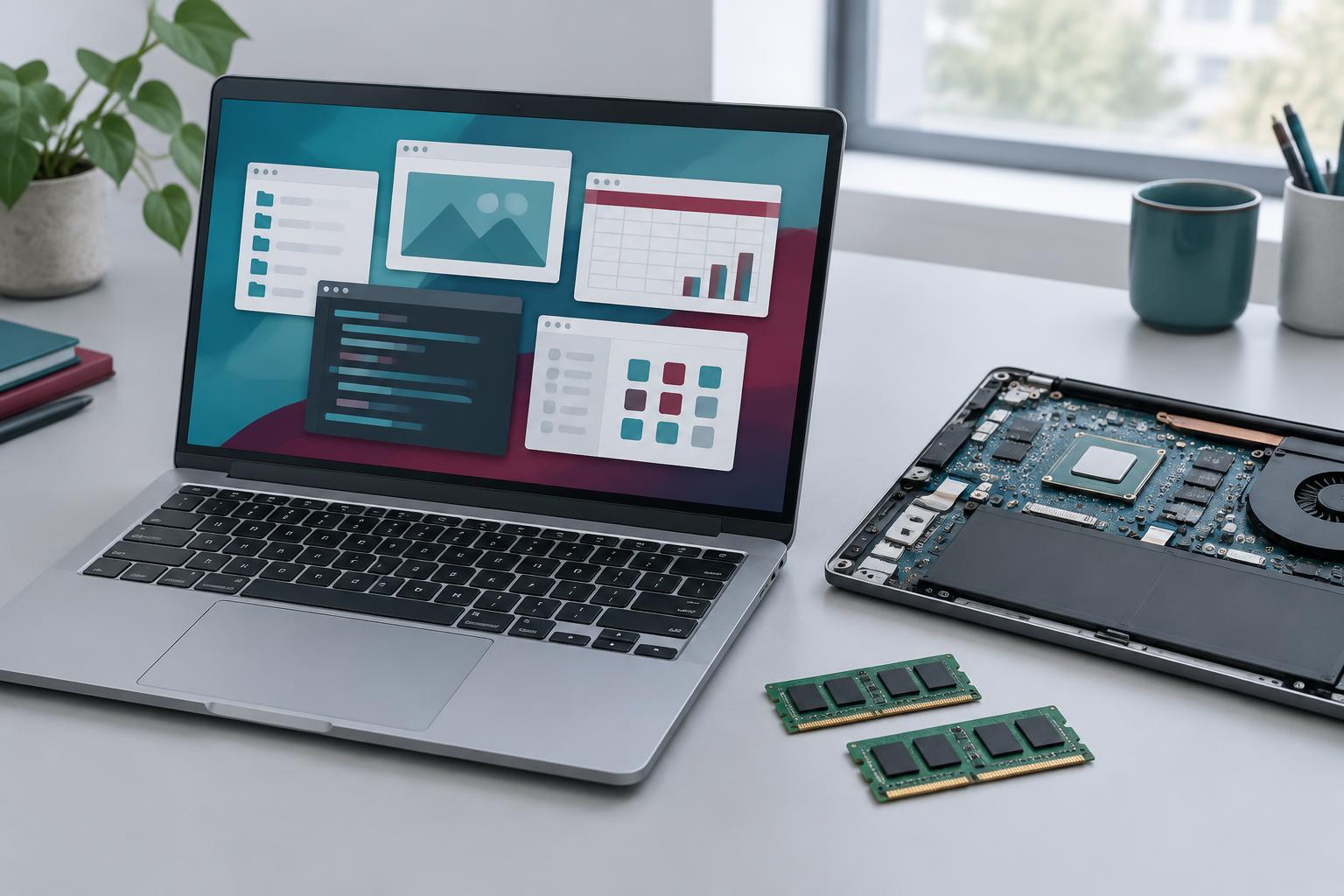
A laptop can look like a bargain until you open the tools you actually use. The browser, video meeting, spreadsheet and photo library compete for the same memory. When the machine runs short, a fast processor does not necessarily stop the pauses. But buying the largest RAM option can be an expensive way to solve a problem you never had.
For most people buying a general-purpose Windows laptop or Mac, 16GB is a sensible starting point. Consider 24GB or 32GB when your normal work involves heavier multitasking, creative applications, development tools or substantial local AI workloads. 64GB and above belong on a requirements-driven shortlist, not an automatic shopping list. 8GB can still serve a narrow, light-use budget, but gives less room for changing habits on a machine you cannot upgrade.
Those are editorial buying recommendations, not universal performance thresholds. This guide draws on operating-system documentation and application requirements; PrimetimeGeek has not run a controlled comparison of every memory configuration. The useful question is not “What number looks modern?” It is “What will I run at the same time, and can I change the memory later?”
RAM is working space, not storage
RAM holds information the computer needs while it is working: open documents, application data and parts of the operating system. The SSD stores your files and applications between sessions. A laptop advertised with 16GB of memory and a 512GB SSD has two separate capacities, not 528GB of interchangeable space.
When physical memory is under pressure, an operating system can compress some data or move less immediately needed data to storage, commonly called swapping or paging. This makes it possible to keep working; it does not turn an SSD into equivalent RAM. Depending on the workload, you may notice delays when switching applications or returning to a task.
More memory primarily helps when capacity is the constraint. It does not automatically make an ordinary document open twice as quickly, fix a slow internet connection or increase a processor's computing ability. Conversely, upgrading the CPU while leaving an inadequate amount of RAM may leave the original frustration intact.
Why the minimum requirement is not a buying recommendation
Microsoft lists 4GB of RAM as Windows 11's minimum. That is an eligibility requirement for the operating system, not a promise that a new 4GB laptop will comfortably handle your meetings, browser and business software together. Application requirements add their own constraints.
Microsoft also specifies 16GB of memory for Copilot+ PCs, alongside other requirements including a qualifying neural processing unit. That is a product-category requirement. It does not establish that every AI task needs exactly 16GB, nor does a 16GB laptop qualify simply because it has enough memory.
The same distinction applies to creative software. An application might install at its minimum specification yet recommend more memory for particular footage or project sizes. Read the recommendation for your actual workload, not only the first number on the page.
A practical guide to 8GB, 16GB, 24GB, 32GB and 64GB
8GB: a constrained-budget, light-use choice. Email, basic documents, streaming and a modest browser workload can be reasonable uses. It becomes a less comfortable bet when you routinely combine a video call, large web apps and desktop applications. For an inexpensive secondary machine or a narrowly managed workflow, it may be enough. For a non-upgradeable primary laptop you hope to keep for several years, compare the price of 16GB before accepting the savings. ChromeOS and other lighter setups deserve their own workload assessment; a Windows minimum is not a Chromebook recommendation.
16GB: the general-purpose starting point. This is our default shortlist for schoolwork, household use, office applications and everyday multitasking on a new Windows laptop or Mac. It leaves more room than 8GB without assuming that every buyer needs workstation capacity. It can also be sufficient for some programming, photo editing and gaming; project size and what else remains open matter more than the job title. It is not a guarantee for every creative workflow or a fixed number of browser tabs.
24GB: a useful middle configuration where available. If 16GB feels tight for your observed workload but 32GB is unavailable or costs substantially more, 24GB can be a sensible compromise. It is particularly worth considering when the memory is fixed at purchase and you regularly keep several substantial applications open. Compare the full configuration and price, because memory tiers sometimes change together with processors or storage.
32GB: headroom for heavier concurrent work. Put this on the shortlist for larger photo projects, 4K video work, development with containers or virtual machines, sizable datasets, and gaming while recording or running other demanding software. Adobe's Premiere Pro requirements recommend 32GB or more for 4K and higher footage on Windows. That recommendation is evidence for that application and platform, not a universal rule that all video editors need the same laptop.
64GB and above: buy for a demonstrated reason. Multiple substantial virtual machines, large creative projects, memory-heavy analysis and particular local AI models can justify it. So can an employer's documented application requirements. Routine office work rarely provides a compelling capacity-based reason on its own. Before paying, establish whether the bottleneck is system RAM, graphics memory, the processor, storage or something outside the laptop entirely.
These bands overlap deliberately. A student editing video may need more memory than a professional who mostly writes in a browser. A software developer working in a lightweight editor may need less than one running several local services. Buy for the workload, not the label.
Windows memory, Mac unified memory and graphics memory
On a Mac with Apple silicon, unified memory is available to the CPU and GPU within the system's shared memory architecture. That can avoid some data copying associated with separate memory pools, but it does not create unlimited capacity. Graphics workloads and ordinary applications still consume a finite resource.
There is no reliable blanket conversion such as “16GB on a Mac equals 32GB on Windows.” Operating systems, applications and hardware designs differ. A comparison needs the same real workload, not a slogan. On Apple silicon Macs, plan around the memory configuration you buy; it is not a conventional user-installable RAM upgrade later.
On a Windows laptop with integrated graphics, the GPU may also use system memory. On a laptop with a discrete GPU, dedicated video memory, or VRAM, is a separate constraint. Adding system RAM does not necessarily solve a game or local AI workload that exceeds the GPU's dedicated memory.
That is why “32GB gaming laptop” is incomplete buying advice. Look at the actual game's published requirements, the GPU and its VRAM, your intended settings, and independent testing of the specific laptop. More RAM does not prove higher frame rates or better sustained performance.
AI does not automatically mean you need 32GB
Using a chatbot in a browser generally means the main model computation runs on the provider's servers. You still need enough memory for the browser and your other tools, but you do not need to fit that cloud model into the laptop. The same caution applies to software branded “AI”: find out where a particular feature runs.
Running a model locally is a different problem. Model size, numerical precision or quantization, context length, concurrent requests and supporting software all affect memory use. The model may need GPU memory, shared memory, system RAM or a combination. A download size is not a complete runtime-memory estimate.
If local AI is an important reason for buying, pick the intended model and software first, read their hardware guidance, then look for tests on a comparable configuration. Do not buy 64GB solely because a sales page says “AI-ready.” Our AI agents guide explains another distinction that marketing can blur: an application's capabilities and its reliability are separate questions.
Measure your current workload before guessing
Your existing computer offers evidence, even if it is old. Open the applications you genuinely use together. Join a meeting, load a typical project and keep your normal browser work open. A demonstration with an empty desktop tells you very little about your working day.
On Windows, use Task Manager's Performance view and select Memory. Look at available memory and overall behavior during representative work, not just the largest percentage you can produce. If the machine slows down while memory is consistently tight, you have a reason to investigate capacity. Disk activity, CPU load and network conditions can also cause pauses; one reading cannot isolate the cause.
On a Mac, open Activity Monitor's Memory view. Apple recommends examining Memory Pressure, which accounts for factors including available memory, swap rate, wired memory and cached files. Used memory by itself is not the verdict: the system can use spare memory to cache information productively. Persistent pressure and slowdowns during your actual workflow are more useful warning signs.
Some swap use is not automatically a failure, and high reported usage alone is not proof that you need a larger configuration. Save observations from a normal work session and a demanding one. That is a better basis for spending than an arbitrary rule about how many tabs each gigabyte can hold.
Check whether the laptop can be upgraded
A memory upgrade is straightforward on some laptops and impossible as a normal user upgrade on others. Soldered memory, memory integrated with the processor package, removable modules and mixed arrangements all exist. A product-family name is not enough: different configurations within the same line may differ.
Before ordering, find the exact model's specification and service documentation. Confirm whether there are replaceable modules, whether slots are occupied, the supported maximum, and which type of memory is required. If you do not find a clear answer, ask the manufacturer in writing. LPDDR in a specification often accompanies fixed-memory designs, but the memory label alone is not a complete serviceability check.
If an upgrade is possible, include compatible parts, labor and service terms in the comparison. If it is not, extra memory at purchase may be worth more because you cannot add it when your work changes. That is practical flexibility, not a guarantee that a larger configuration will remain useful indefinitely.
Spend the budget on the whole laptop
Consider two hypothetical configurations, not current market quotes: one costs $800 with 16GB, while a $1,050 version has 32GB. If your work fits comfortably within 16GB, the extra $250 may be better spent on a usable screen, longer battery life, a suitable SSD or keeping money in reserve. If your current projects consistently strain 16GB and neither model is upgradeable, the larger configuration deserves serious consideration.
Now imagine an inexpensive laptop with plenty of RAM but a weak processor, poor keyboard and inadequate battery. The memory number does not rescue the overall purchase. For students and remote workers, an unreliable video meeting experience may matter more than capacity they never use. For a video editor, both memory and the processor, GPU, storage and cooling can matter.
Avoid paying twice for the wrong fix. First identify the constraint, then compare complete configurations and return policies. A short return window can be your opportunity to run a realistic workload, provided you follow the retailer's terms.
A five-question checklist before you buy
1. What will be open together? Name the applications and realistic project sizes, not just “work” or “gaming.”
2. What do those applications recommend? Check the current version, operating system and intended workload. Minimum specifications are the floor.
3. What does your current machine show? Look for sustained memory pressure alongside actual delays, rather than treating one high percentage as a diagnosis.
4. Can the exact new model be upgraded? Verify the service documentation before assuming that a future RAM kit is an option.
5. What are you giving up to buy more memory? Compare the screen, processor, storage, battery, warranty and total price, then test during the return period if possible.
What this evidence can — and cannot — tell you
Microsoft's specifications establish eligibility requirements. Apple's documentation explains how to interpret a Mac's memory behavior. Adobe's requirements identify application-specific guidance. They do not collectively prove that one RAM amount is optimal for every American buyer, and this article does not claim hands-on benchmark results.
The recommendations here are a planning framework. Software changes, different projects and different hardware can move the right answer. There is no trustworthy universal tab count, no fixed Mac-to-Windows multiplier, and no guaranteed number of useful years attached to 32GB.
The bottom line is uncomplicated: start your general-purpose search at 16GB, move to 24GB or 32GB when your workload gives you a reason, and reserve 64GB or more for requirements you can explain. Choose 8GB knowingly when a light-use budget calls for it. The best RAM configuration is the one that supports the work you do without taking money away from the parts of the laptop you will notice every day.
Sources
- Microsoft — Windows 11 specifications and system requirements (accessed October 27, 2026)
- Microsoft — Copilot+ PCs and Windows PCs: differences (accessed October 27, 2026)
- Apple — View memory usage in Activity Monitor (accessed October 27, 2026)
- Apple — Check if your Mac needs more RAM in Activity Monitor (accessed October 27, 2026)
- Adobe — Premiere technical requirements, Windows memory recommendations (accessed October 27, 2026)
- Dell — How to install or upgrade RAM or system memory (accessed October 27, 2026)