 PrimetimeGeek independent technology journalism · relaunched 2026
How to review app permissions on your phone: a practical guide
Most phone apps ask for access to your camera, location, contacts or microphone. Here is a simple routine for deciding what to allow, what to revoke, and what permission settings cannot tell you.
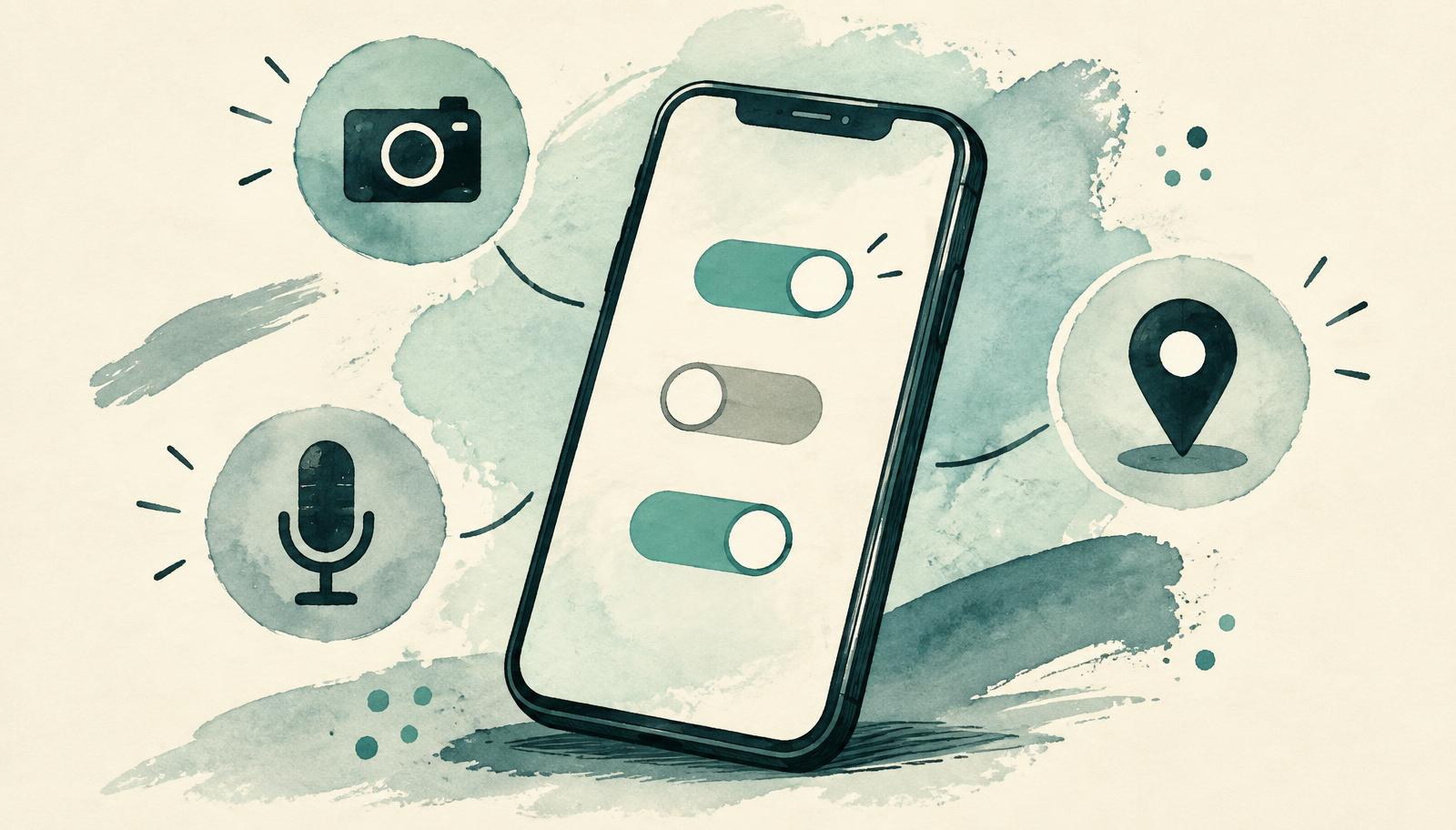
Every app you install is a small piece of software that may request access to sensitive parts of your phone: the camera, microphone, precise location, contacts, photos, calendar, files and notifications. Many people tap Allow while setting up an app and never look again. Over months, a phone can accumulate dozens of grants, some for apps that are rarely opened.
This is a vendor-neutral guide for US readers. It draws on public consumer guidance from the FTC and the NIST Privacy Framework; the routine and examples are editorial recommendations. Menu names differ between operating systems and versions, so use your phone's settings search for the exact screens.
The short answer
Allow only the access an app needs for the task you are doing, prefer "while using the app" over "always" for location, remove access from apps you no longer use, and uninstall apps you do not need. Revisit the list a few times a year.
Step 1: Start with the sensitive five
Open your phone's privacy settings and review these categories first: location, microphone, camera, contacts and photos. Each category typically lists every app that has been granted access. Scan for surprises, such as a flashlight app with contacts access or a simple game with microphone access.
Step 2: Ask whether the access matches the feature
A navigation app needs location; a video-call app needs camera and microphone. A permission that has no obvious link to a feature you use is worth questioning. Absence of an obvious reason does not prove misuse, since some apps use access for legitimate but less visible functions, but it is a reasonable cue to turn the permission off and see whether anything you care about stops working.
Step 3: Narrow the scope when you can
Modern phones often let you grant narrower access: approximate rather than precise location, selected photos rather than the full library, or one-time access that expires after you close the app. Choose the narrowest option that still lets the feature work. Background location deserves special care because it can record where you go even when the app is closed.
Step 4: Prune apps, not just permissions
Unused apps still receive updates, run background tasks and may retain data. If you have not opened an app in months, uninstall it. Also delete the account or request deletion of your data through the app's privacy settings if you will not return; uninstalling alone usually does not remove what the company has already collected.
Step 5: Check the privacy label and policy for the few that matter
App stores show summary labels describing what data an app says it collects. These are self-reported by developers, so read them as claims rather than audited facts. For apps that handle health, money or children's data, spend a few minutes on the privacy policy: what is collected, whether it is shared or sold, how long it is kept and how to delete it.
Common mistakes
- Choosing "Always allow" location because the prompt appears while you are in a hurry.
- Denying a permission once and assuming that is permanent; some apps ask repeatedly or change behavior, so recheck.
- Treating a long permission list as proof of bad intent, or a short one as proof of safety.
- Ignoring browser site permissions, which can also grant camera, microphone and notification access.
What the evidence supports — and what it cannot promise
Limiting data collection to what is needed is a core principle in both FTC consumer guidance and the NIST Privacy Framework. There is no controlled study showing that a specific permission-review routine prevents a particular share of privacy harms. Permission settings control what the operating system allows; they do not reveal what an app does with data you have already shared, what its servers retain, or what third parties receive.
We cannot see your phone, your installed apps or your operating-system version. Permissions are also only one layer: keeping software current matters too, as covered in our guide to when to install a major software update, and many privacy losses begin with a deceptive message, see how to spot a phishing message.
The practical conclusion
Fifteen minutes in your privacy settings is enough for a first pass. Review the sensitive five, narrow access where possible, delete what you do not use, and set a reminder to repeat the check a few times a year.