 PrimetimeGeek independent technology journalism · relaunched 2026
Best Cybersecurity Tools for Everyday Americans: Protecting Your Devices, Accounts and Data
A practical US guide to password managers, passkeys, built-in antivirus, encryption and backups, with clear advice on what to use, what to buy and what no tool can guarantee.
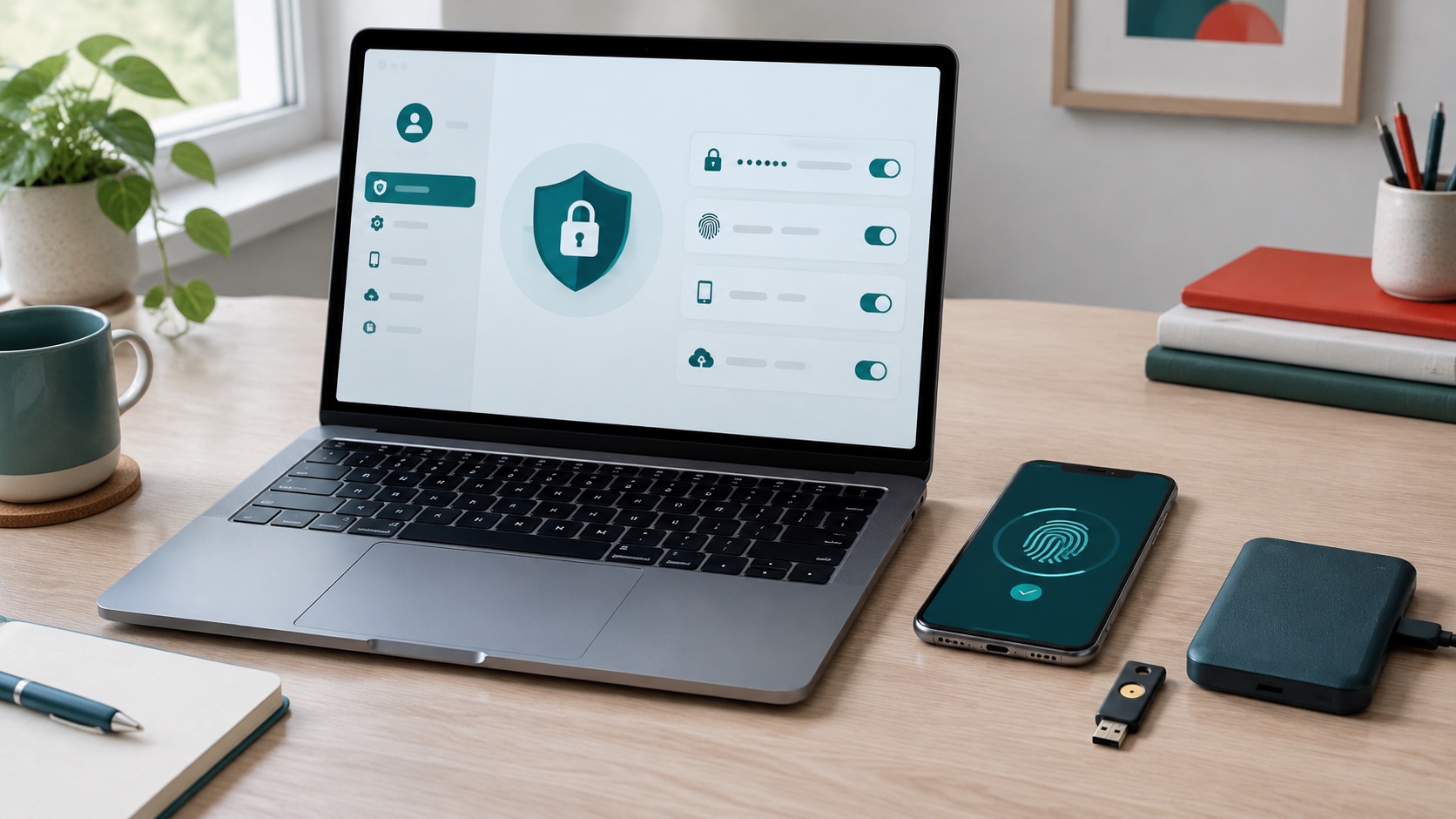
The most useful cybersecurity purchase is not always another subscription. It might be an afternoon spent securing the email account that resets every other password, checking that your laptop actually installs updates, and making a backup you can restore. A security dashboard can look reassuring while those three jobs remain undone.
For everyday Americans, the goal is practical: keep criminals out of accounts, reduce the chance that a bad download compromises a device, and recover important files when something goes wrong. Those are different problems. No single antivirus package, VPN or identity-monitoring service solves all of them.
Short answer: Start with a password manager, passkeys or multifactor authentication, the protections built into a supported operating system, automatic updates and a tested backup. Add a hardware security key, paid security suite or VPN only when it addresses a specific need. Buying more tools is not the same as getting more protection.
How we selected these tools: This AI-assisted guide reviews government advice, standards-body guidance and official product documentation available November 20, 2026. Selection favors everyday usefulness, low setup burden, recovery options and clear limits. These are category recommendations, not a laboratory ranking. PrimetimeGeek did not perform malware tests or a controlled head-to-head comparison, and vendor descriptions are not independent performance evidence. Prices and detection-rate claims are deliberately omitted because plans and test conditions change.
1. A password manager: the best starting point for account security
Reusing a password turns one company's breach into a problem across your digital life. A password manager generates a different password for each account and remembers it for you. CISA recommends long, random, unique passwords and using a manager to make that manageable. 1
A practical example is Bitwarden. Its official plan documentation says the free individual plan includes unlimited storage of logins, access on any device and a password generator. That makes it an option for households moving between Windows, macOS, Android and iPhone. It is an example of a cross-platform manager, not a claim that it is more secure than every competitor. 2
If your existing built-in password manager already covers the devices you use, start there rather than changing products for its own sake. The useful test is whether you can generate unique passwords, sign in comfortably, protect the vault and recover access after losing a device.
Create a long, unique master passphrase where the manager requires one, turn on its strongest supported sign-in protection, and keep recovery information somewhere secure outside the vault. Do not store the only copy of your recovery instructions inside the account you may need to recover. Learn the export and recovery rules before importing years of credentials.
Begin with primary email, banking, shopping and social accounts. Verify imported entries before deleting old copies. Do not install a password-manager extension from an advertisement or unsolicited message; get it through the developer's official site and your browser's legitimate extension store.
2. Passkeys and authenticator apps: protect the login itself
A password manager addresses password reuse. Stronger authentication addresses the possibility that a password is stolen anyway. Where available, a passkey lets you authenticate using a device or credential manager, usually unlocked with a fingerprint, face recognition or device PIN. The biometric check unlocks the credential locally; it is not a fingerprint sent to each website.
Passkeys use credentials associated with the legitimate service rather than a reusable secret you can type into a fake login page. FIDO's guidance describes their phishing resistance, while emphasizing that account login and recovery both need protection. A passkey does not make a scam purchase, malicious attachment or compromised device harmless. 3
Where a service does not support passkeys, use its available multifactor authentication. An authenticator app that generates time-based codes can be useful, but those codes can still be relayed through a phishing site. A text-message code is not the strongest option, yet using an available second factor is generally preferable to relying on a password alone. Never approve a sign-in request you did not initiate.
The overlooked step is recovery. Check whether passkeys sync, how to enroll another device, what happens when you replace a phone and whether weak fallback methods remain enabled. Store backup codes securely. Our passkeys-versus-passwords guide explains the household trade-offs in more detail.
3. Hardware security keys: extra protection for important accounts
A physical security key uses a USB connection or, on compatible models, NFC to help authenticate a sign-in. Choose a FIDO2-compatible model that the account provider explicitly supports. Its value is not that it looks sophisticated; it can provide phishing-resistant authentication without relying solely on the phone you carry everywhere.
Keys are worth considering for people targeted because of their work, administrators, journalists, and anyone whose primary email account controls valuable financial or business access. They are not mandatory for every family, and support differs across websites.
Register a spare where the service permits it, keep it separately and test the recovery process before you need it. Check connector type, phone support and the account's enrollment instructions before buying. A key cannot protect a service that does not support it, and a weak recovery route can undermine a strong everyday login.
4. Built-in device security: use what you already have
On a supported Windows 11 computer, Windows Security includes Microsoft Defender Antivirus and other protective features. Microsoft's documentation describes antivirus, reputation-based protection and Windows Hello among the available layers. Availability varies by hardware and configuration, and a feature being included does not prove that it is enabled. 4
Open the security dashboard, check that protection is active and investigate warnings through the application itself. Do not trust a browser pop-up announcing that the computer is infected or a caller asking for remote access to fix it. A paid suite may make sense for a family that wants centralized management or specific support, but compare those benefits rather than assuming a subscription automatically produces stronger protection.
Avoid running multiple full-time antivirus engines together unless their documentation explicitly supports that arrangement. Extra scanning can create conflicts and confusion. On Macs and phones, use the platform's security settings, a strong screen lock, supported software and careful app installation rather than expecting a desktop-style scanner to have the same powers on every operating system.
Antivirus has a defined job. It cannot reliably stop you from voluntarily transferring money to an impersonator, sharing a verification code or signing into a convincing fake service. Account protection and scam-resistant habits still matter.
5. Automatic updates: a security tool that rarely needs buying
Updates close vulnerabilities in the operating system, browser and applications. CISA advises installing updates promptly and enabling automatic updates. That makes the update settings you already own one of the most useful tools in this guide. 5
Check more than the laptop. Phones, browser extensions, routers, smart-home hubs and rarely used tablets can all fall behind. A device still turning on does not mean its manufacturer still fixes security flaws. Check its support status rather than assuming a new antivirus product compensates for an unsupported operating system.
For ordinary households, keep security updates automatic and allow necessary restarts. Before a major feature upgrade, back up important files and confirm essential software works. Small businesses should follow their IT provider's rollout instructions instead of individually disabling updates. If a suspicious website tells you to download a browser update, close it and use the browser's own update controls.
6. Encrypted storage and screen locks: protection when a device disappears
A stolen laptop is not just a replacement expense. It can contain tax records, saved account sessions and family documents. A strong screen lock and disk encryption address physical loss, although neither guarantees safety when a device is already unlocked or malware is running as you.
On Windows, check whether your computer supports Device Encryption or BitLocker and whether protection is on. Features vary by edition and hardware. On a Mac, Apple's FileVault documentation explains that Apple silicon and T2-equipped Macs already encrypt data automatically; enabling FileVault adds protection tied to login credentials. Older Macs may require FileVault to encrypt the startup disk. 6
Keep recovery keys outside the encrypted device and protected from casual access. Encryption without a usable recovery plan can lock you out of your own files. Enable the platform's device-finding feature where appropriate, review its privacy settings and learn how to mark a device lost without waiting for an emergency.
7. Backups: the tool that makes a bad day recoverable
Malware is only one reason files vanish. A broken drive, accidental deletion, stolen phone or mistaken account closure can be just as disruptive. Keep a separate copy of important documents and photos, and test that you can open restored files.
Cloud synchronization is useful, but it is not automatically an independent backup. Deletions and unwanted changes may sync too. Check version history, retention periods, restore limits and what happens when you stop paying. Built-in backup software, an external drive and a cloud service can each play a role, depending on what you need to recover.
An external drive left continuously attached may also be reachable by malware. Keep at least one copy disconnected or otherwise isolated when not backing up. If backups contain private information, protect them with encryption and preserve the recovery credentials separately. A backup you have never restored is a promise, not a demonstrated recovery plan.
For a home office, list the files whose loss would stop work: invoices, contracts, project files and account-recovery records. Back those up first. Then establish a recurring restore check rather than assuming a green status icon means every important folder is included.
8. Browser and network protections: useful, but limited
Keep browser phishing and dangerous-download warnings enabled, and take a warning seriously before bypassing it. CISA notes that phishing can arrive through email, text, social messages or calls and that polished grammar is no longer reassuring evidence. Open a known application or type a trusted address rather than following an urgent payment or account-reset link. 7
For home Wi-Fi, use current router software, a strong administrator password and modern wireless encryption supported by your equipment. Review remote administration and separate guest or less-trusted devices where your router allows it. A password-protected network does not validate every website you visit.
A VPN can protect traffic between your device and the VPN provider, but it moves some trust to that provider. HTTPS already encrypts browser traffic to legitimate websites, including on public Wi-Fi. A VPN does not guarantee anonymity, prevent account phishing or sanitize downloads. Follow employer rules for work VPNs; do not buy a consumer service simply because an advertisement says public Wi-Fi makes every password visible.
The everyday protection checklist
The table compares jobs rather than declaring a universal product winner. Its account, update and phishing guidance follows the CISA sources above; product examples reflect official documentation, not comparative laboratory results.
| Tool | Main job | Important limit |
|---|---|---|
| Password manager | Unique credentials and easier sign-in | Vault protection and recovery still matter |
| Passkey or MFA | Reduce unauthorized account access | Recovery and fallback methods may remain weaker |
| FIDO2 security key | Phishing-resistant sign-in on supported accounts | Requires support and a spare or recovery plan |
| Built-in antivirus | Detect and block some malware | Does not prevent every scam or fraudulent transfer |
| Automatic updates | Fix known software vulnerabilities | Unsupported devices may no longer receive fixes |
| Disk encryption | Protect stored data after physical loss | Cannot protect everything on an unlocked device |
| Separate backup | Recover important files | Needs isolation, retention and restore testing |
| Browser warnings and optional VPN | Reduce specific browsing or network risks | Not universal fraud prevention or anonymity |
What is worth paying for?
Pay for a feature you will actually use: family credential sharing, a needed recovery capability, backup capacity, security-key hardware or trustworthy support. Check renewal terms, cancellation, supported devices and what the subscription duplicates. Several bundled services with overlapping alerts can make it harder to tell which warning needs action.
Breach alerts and identity monitoring can tell you that information has appeared in a dataset or that an account may need attention. They do not delete leaked information or prevent every misuse. If identity theft occurs, the FTC's IdentityTheft.gov is the official US starting point for a report and recovery plan.
A realistic first weekend plan
First, secure the account that resets the others: your primary email. Replace a reused password, add a passkey or strong available MFA, and inspect recovery addresses and signed-in devices. Next, set up your manager and change the highest-value reused passwords.
Then check devices: confirm updates and protection are enabled, verify encryption and store recovery information safely. Make a separate backup and restore one document and one photo. Finally, review financial-account alerts and talk with household members about independently verifying urgent money requests. Tools work better when the family understands which requests to stop and check.
Five common questions
Do I need paid antivirus on a Windows laptop? Not automatically. Verify the built-in protections on a supported system first. Pay when additional management, support or a specific feature addresses a genuine need, not simply because a trial subscription expired.
Can my phone's fingerprint protect every account? No. It can unlock a device or a passkey, but the account must support that sign-in method. Check recovery and fallback options too.
Is a free password manager safe to consider? Price alone is not a security assessment. Check documentation, update history, vault protection, recovery options and whether the free plan covers your devices. Use official distribution channels.
Will a VPN stop scammers? No. It does not make a fake store legitimate or stop you from sharing a code. Use it for a defined network need, alongside account and device protections.
What should I do if an account is compromised? From a trusted device, use the provider's official recovery process, change compromised credentials, revoke unfamiliar sessions and check recovery settings. Contact the bank promptly if money or payment details are involved. Preserve evidence and follow the provider's incident instructions.
The bottom line: The best cybersecurity tools are the ones that cover different risks and remain usable after setup. Secure your logins, keep supported devices updated and make recovery possible. That combination is more valuable than collecting security subscriptions you cannot explain or maintain.
Sources
- [1] CISA: Use Strong Passwords (accessed November 20, 2026)
- [2] Bitwarden: Password Manager Plans (vendor documentation) (accessed November 20, 2026)
- [3] FIDO Alliance: Passkeys, the Journey to Prevent Phishing, Part 1 (March 2025) (accessed November 20, 2026)
- [4] Microsoft: Windows Security (vendor documentation) (accessed November 20, 2026)
- [5] CISA: Update Software (accessed November 20, 2026)
- [6] Apple: Protect data on your Mac with FileVault (vendor documentation) (accessed November 20, 2026)
- [7] CISA: Recognize and Report Phishing (accessed November 20, 2026)
- [8] FTC: IdentityTheft.gov recovery resource (accessed November 20, 2026)