 PrimetimeGeek independent technology journalism · relaunched 2026
Cloud Storage vs. Local Storage in 2026: What's the Best Way to Protect Your Digital Files?
Cloud plans now bundle AI features and family pools, while a two-terabyte external drive costs about what thirteen months of cloud fees do. The real question is not which one is better — it is which failure each one protects you from. Here is the 2026 evidence.
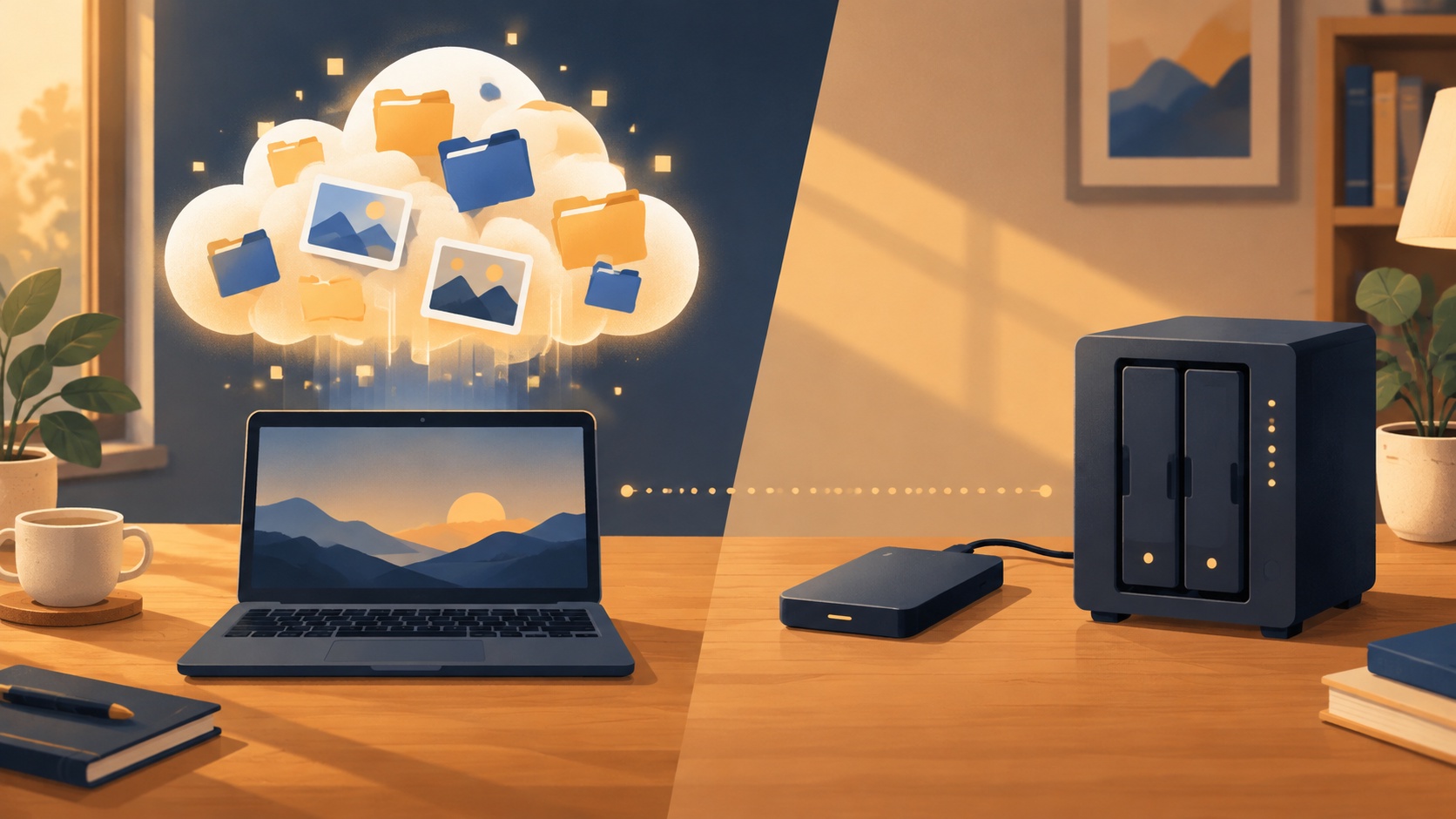
Ask ten people where their files live and you will hear two confident answers: “everything is in the cloud” and “I keep my own drive, thanks.” Both camps are half right, and the half they are missing is where files actually get lost. Cloud accounts get locked, synced deletions propagate everywhere, and providers have outages and breaches. Local drives fail mechanically, get dropped, stolen, or encrypted by ransomware along with the computer they are plugged into.
The useful question for 2026 is not “cloud or local?” but “which failures does each one survive?” This article compares the two on cost, reliability, security and privacy using current prices and published failure data, then turns that into a practical setup for an American household. If you want the step-by-step version of the backup side, our earlier guide, How to back up your digital life so you can actually restore it, walks through the process.
Short answer: Neither, alone. The setup that actually protects your files in 2026 is both: your working files synced to a reputable cloud service for convenience and off-site protection, plus at least one local copy on an external drive that is not always connected to your computer. For most households that costs roughly $10 a month for the cloud tier and about $120 once for a two-terabyte drive — a combination that covers the failures each one cannot handle on its own.
What the cloud costs in 2026 — and what a drive costs
Cloud storage pricing shifted this year in ways worth knowing before you compare. Google folded its storage ladder into its AI plans: the 2 TB tier is now sold as “Google AI Plus” at $9.99 a month or $99.99 a year, and a 5 TB “AI Pro” plan runs $19.99 a month. Apple’s iCloud+ is unchanged at $0.99 for 50 GB, $2.99 for 200 GB and $9.99 for 2 TB. Microsoft made the biggest structural change: new Microsoft 365 Family subscribers now share a single 2 TB pool across up to six people, replacing the old 1 TB-per-person model. Dropbox Plus sits at $9.99 a month for 2 TB on annual billing.
Local storage is a one-time purchase. As of late November 2026, a mainstream 2 TB external hard drive such as the WD My Passport costs about $123 on Amazon. Price-comparison site ratioDB, which tracks both sides, calculates that the drive pays for itself against a $9.99-a-month cloud plan after about thirteen months — and over five years, the drive is far cheaper per terabyte.
So on pure cost per terabyte, local storage wins decisively. But that comparison assumes the drive keeps working and stays in your possession — which is exactly what the reliability numbers address next.
How each one actually fails
Local drives fail mechanically and physically. Backblaze, a cloud backup company that publishes quarterly statistics on the more than 350,000 hard drives in its data centers, reported an annualized failure rate of 1.73 percent for the second quarter of 2026, up from 1.24 percent in the first quarter, with a lifetime average of 1.41 percent. Those are data-center drives under heavy use, but the physics applies at home: spinning drives wear out, and a single drive has roughly a 7 percent chance of failing within five years. Solid-state drives avoid the moving parts but have their own trap — an SSD left unpowered for over a year can silently lose data as charge bleeds from its memory cells, which makes a drawer full of old SSDs a poor archive. And none of this covers the non-mechanical risks: theft, fire, flood, or simply dropping the drive while it is running.
Cloud storage fails differently. Your files sit in redundant data centers, so a single drive failure is the provider’s problem, not yours. The realistic risks are account-level and provider-level: outages that make files temporarily unreachable, account lockouts you have to appeal, and security incidents. These are not hypothetical — in October 2026, Japanese provider IDC Frontier disclosed that attackers exploited a vulnerability in its cloud portal and deployed ransomware that shut down and encrypted some customers’ virtual servers, affecting 495 corporate and local-government customers. Consumer services like iCloud and Google Drive are far larger targets with far larger security teams, but the category of risk — your files depending on someone else’s systems and your own account security — is the same.
The failure both share: sync is not backup. If you delete a file — or ransomware encrypts it — and your storage syncs, the deletion or encryption syncs too. The UK’s National Cyber Security Centre warned in July 2026 that it has seen numerous incidents where ransomware encrypted not just the original data but also the connected USB drives, network storage and cloud-synced locations holding the backups. A synced folder is one copy of your files that happens to exist in two places, not two copies.
The security and privacy trade-offs
Cloud strengths. Reputable providers encrypt data in transit and at rest, maintain version history so you can roll back changes, and survive house fires and burglaries by definition. Apple’s iCloud+ also offers Advanced Data Protection, a free opt-in that extends end-to-end encryption to most iCloud data categories — meaning Apple itself cannot read the contents — which is currently the strongest mainstream consumer option of its kind.
Cloud weaknesses. Your files are reachable by anyone who gets into your account, which makes the account itself the target. The NCSC’s guidance for cloud backups starts with identity: the account holding your backups needs a strong, unique password and multifactor authentication, because a stolen login turns your off-site backup into an attacker’s download. This is where the work from our cybersecurity tools guide and the passkeys comparison pays off — a passkey on your Google or Apple account closes the most common door. Privacy is the other honest trade-off: unless you enable end-to-end encryption, the provider technically can access your files, and may scan them for policy enforcement or use metadata under its privacy policy.
Local strengths. A drive in your house is not reachable over the internet at all. Nobody can phish their way into it, no provider can scan it, and no terms-of-service change can lock you out of it. For sensitive documents — tax records, scans of identity documents, family archives — that physical isolation is a genuine security property, not nostalgia.
Local weaknesses. Everything physical: theft, fire, flood, failure, and the fact that a drive plugged into your computer when ransomware arrives gets encrypted along with everything else. QNAP’s 2026 enterprise survey of 1,838 organizations found that while 83 percent kept an off-site backup, 49 percent left that backup online and reachable — a mistake with a price tag. Citing a 2024 Sophos study, the survey notes that 94 percent of organizations hit by ransomware said attackers tried to compromise their backups, 57 percent of those attempts succeeded, and when the backup was compromised the share of victims paying the ransom jumped from 36 to 67 percent. The consumer-scale version of that lesson is simple: a backup that is always connected is not a backup.
Side by side
The table below summarizes the practical comparison. Cost figures are US prices as of November 2026 from provider pages and price trackers; the failure-rate figures are Backblaze’s Q2 2026 data-center statistics.
| Question | Cloud storage | Local storage (external drive / NAS) |
|---|---|---|
| Cost for 2 TB | About $9.99/month ($100–120/year), ongoing | About $123 once for an external drive; NAS costs more up front |
| Five-year cost for 2 TB | Roughly $500–600 in fees | Roughly $123, plus a replacement drive if it fails |
| Survives house fire or theft? | Yes — files are off-site | No — one location, one disaster |
| Survives provider outage or lockout? | No — files unreachable until resolved | Yes — no internet or account needed |
| Reachable by account attackers? | Yes — protect the account with a passkey or MFA | No — not on the internet at all |
| Vulnerable to ransomware on your PC? | Yes, if it syncs automatically | Yes, if left plugged in |
| Hardware failure risk | Provider’s problem, absorbed by redundancy | Yours — roughly 1.4–1.7% of drives per year (Backblaze Q2 2026) |
| Privacy from the provider | Limited unless you enable end-to-end encryption | Complete — no provider involved |
| Access from anywhere | Yes, on any device | No, unless you run and expose a NAS (which reintroduces risk) |
The setup that actually protects you
The long-standing 3-2-1 rule — three copies, two different kinds of storage, one off-site — still describes the goal, and the cloud-plus-local combination is the easiest way for a household to hit it. In practice:
1. Let the cloud be your working copy and your off-site copy at once. Pick the service that matches your devices: iCloud+ if your household is all-Apple (it is the only service that backs up an iPhone itself), Google One if you mix iPhones and Androids, Microsoft 365 if you want the Office apps bundled. Turn on automatic photo and document sync.
2. Add one local copy that is not always connected. An external drive that you plug in weekly for a backup — using Time Machine on a Mac or File History on Windows — and then unplug. The unplugging is the security feature: ransomware cannot encrypt a drive that is not attached, and a power surge cannot fry it.
3. Lock down the cloud account like it is your front door, because it is. Use a passkey where offered, or a unique password from a password manager plus multifactor authentication. Know the account-recovery process before you need it — a locked cloud account with no recovery path is a data-loss event, not an inconvenience.
4. Consider end-to-end encryption for the sensitive layer. Apple’s Advanced Data Protection is the easiest mainstream switch to flip. On other services, an encrypted container or a backup tool with its own encryption key achieves the same effect at the cost of some convenience.
5. Test a restore occasionally. A backup you have never restored from is a hypothesis. Once a quarter, pick a file that matters and actually retrieve it from each copy. Backup-industry statistics consistently find that a large share of organizations — let alone households — discover their backups do not work only when they need them.
Common mistakes to avoid
Treating sync as backup. One synced folder is one copy. Delete or encrypt it anywhere and it is gone everywhere. Keep at least one copy that does not sync.
Leaving the backup drive plugged in. Convenience quietly converts your second copy into a second target. Plug in, back up, unplug.
Archiving on SSDs in a drawer. Flash memory needs power to hold data reliably over years. For long-term cold storage, a spinning drive — checked periodically — is the safer medium.
Paying for cloud tiers you do not use. Check your actual usage before upgrading; many households pay for 2 TB while using 300 GB. Conversely, do not let a free 5 GB tier be your only copy of a lifetime of photos.
Assuming the provider can always give your files back. Providers restore their own systems after incidents; restoring your specific files quickly is not guaranteed, as the IDC Frontier incident showed. Your local copy is the one whose recovery you control.
Five questions readers ask
Is cloud storage safe from hackers? The provider’s data centers are genuinely hard to breach; your account is the soft target. Most consumer cloud compromises are account takeovers through phished or reused passwords, not data-center break-ins. A passkey or strong password plus MFA on the account, as covered in our phishing guide, addresses the realistic threat.
How long does an external hard drive last? Backblaze’s fleet data shows annualized failure rates between roughly 1.2 and 1.7 percent in recent quarters, which implies most drives last well beyond five years but a meaningful minority do not. Treat any single drive as temporary, and keep the second copy.
Is a NAS worth it for a home user? A network-attached storage box gives you local storage that every device in the house can reach, with drive redundancy inside. It costs more up front, uses electricity around the clock, and — if you expose it to the internet for remote access — reintroduces the account-security problem locally. It is a good fit for households with several terabytes and multiple computers; overkill for a laptop and a phone.
What about lifetime cloud plans? Services like pCloud sell one-time “lifetime” storage. The arithmetic can work — recent pricing puts break-even around five years against subscriptions — but “lifetime” means the company’s lifetime, and you are betting a one-time payment against a decade of a smaller provider’s business decisions. Treat it as one copy, not the archive.
Should I encrypt my local backup drive? Yes, if it holds anything sensitive and could leave your house. Both macOS and Windows can encrypt an external drive with a password. Write that password down and store it separately — an encrypted drive whose password is lost is indistinguishable from a broken one.
The bottom line
In 2026 the cloud-versus-local argument has a boring, correct answer: you need both, doing different jobs. The cloud gives you off-site protection, anywhere access and automatic sync for about $10 a month. A $120 external drive gives you a copy that no outage, lockout, breach or ransomware campaign can touch — as long as you unplug it. The people who lose files are almost never the ones who chose the “wrong” technology; they are the ones who had only one copy and called it a backup.
PrimetimeGeek has no commercial, affiliate or advertising relationship with Apple, Google, Microsoft, Dropbox, Western Digital, Backblaze, QNAP, pCloud or any other company named in this article, and none paid for or reviewed this coverage. Prices are as published in November 2026 and change frequently; drive-failure figures are data-center statistics, not a prediction for any individual drive.
Sources
- [1] AppleScoop: Cloud storage prices in 2026 — iCloud+, Google One and more (October 15, 2026, updated November 8, 2026) (accessed November 23, 2026)
- [2] ratioDB: Cloud Storage vs External Hard Drive — 5-Year Cost per TB (October 30, 2026) (accessed November 23, 2026)
- [3] Backblaze: Q2 2026 Drive Stats — Quarterly Failure Rate Rises to 1.73% (September 29, 2026) (accessed November 23, 2026)
- [4] UK National Cyber Security Centre: Offline backups in an online world (July 2026) (accessed November 23, 2026)
- [5] QNAP: 2026 Enterprise Cyber Resilience Survey — Why Aren't Backups Stopping Ransomware? (October 20, 2026) (accessed November 23, 2026)
- [6] IDC Frontier: Investigation findings regarding unauthorized access and ransomware (October 27, 2026) (accessed November 23, 2026)
- [7] DEV Community / SaaSPriced: Cloud Storage Pricing in 2026 — What a Terabyte Actually Costs (November 20, 2026) (accessed November 23, 2026)